Cadillac Play 88 Login Problems: Fix Android App & Mobile Errors
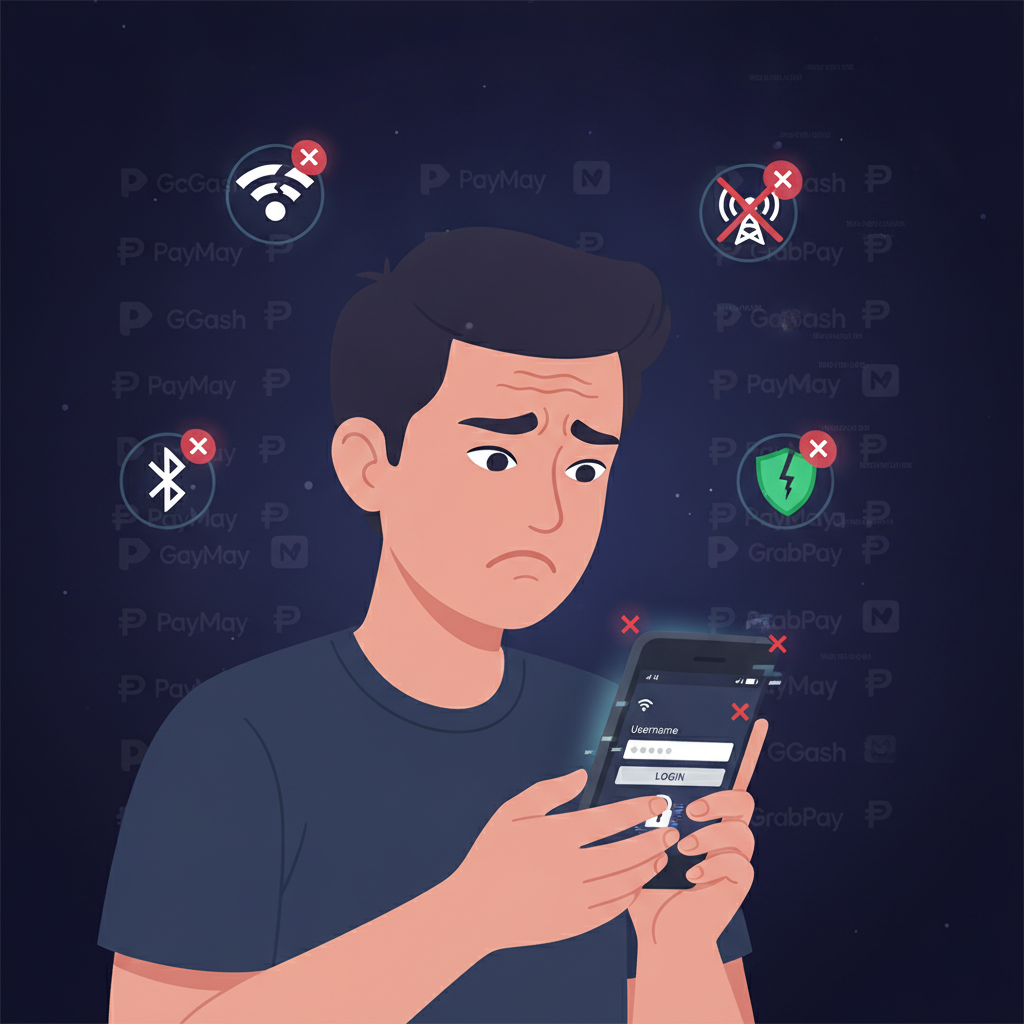
Incorrect Password or Username: Reset Steps and Customer Service Contact
If you see "incorrect username or password" when trying to log in to Cadillac Play 88, double-check that your mobile number or email is typed exactly as registered. The platform uses your phone number as the default username for most Filipino accounts.
Password reset steps:
- Tap "Forgot Password" on the Cadillac Play 88 login screen
- Enter the mobile number or email linked to your account
- Check your SMS or inbox for a reset code (usually arrives within 2–3 minutes)
- Enter the code and create a new password—use at least 8 characters with a mix of letters and numbers
If the reset code does not arrive after five minutes, check your spam folder or confirm the mobile number is correct. GCash-linked registrations sometimes use the same number for both login and payment verification.
When the reset link expires or the system does not recognize your credentials, contact Cadillac Play 88 customer service:
- Live chat: Available 24/7 through the app or mobile site
- Email support: Response typically within 12–24 hours
- Facebook Messenger: Faster replies during peak evening hours (6 PM–11 PM Manila time)
Have your registered mobile number and approximate last login date ready. Support may ask for the last four digits of a recent GCash or Maya deposit to confirm your identity.
App Crashes or Won't Open on Android: Clearing Cache, Reinstalling, and Device Compatibility
Cadillac Play 88 app crashes are common on older Android devices or when cache files build up. The app works best on Android 7.0 and above with at least 2 GB of RAM.
Clear app cache (easiest fix):
- Open Settings on your Android phone
- Go to Apps or Application Manager
- Find Cadillac Play 88 in the list
- Tap Storage, then Clear Cache (not Clear Data—that erases saved login details)
- Restart the app
This solves most loading freezes and sudden exits, especially after a software update or long session.
Reinstall the APK:
If clearing cache does not help, uninstall the app completely:
- Long-press the Cadillac Play 88 icon and select Uninstall
- Download the latest APK from the official Cadillac Play 88 mobile site (not from third-party stores)
- Enable Install from Unknown Sources in your phone's security settings if prompted
- Open the downloaded file and tap Install
- Log in with your existing credentials—your balance and account history remain intact
Always download the APK directly from Cadillac Play 88's verified domain. Fake casino apps circulate on some forums and can compromise your GCash or Maya wallet.
Device compatibility issues:
Phones with less than 2 GB of RAM may struggle with live dealer games and in-play sports betting. If your device is Android 6.0 or older, the app may not launch at all after recent updates. In that case, use the mobile browser version instead—it offers the same deposit, withdrawal, and betting features without requiring an APK install.
Huawei devices without Google Play Services sometimes block payment pop-ups. Switch to the mobile site or enable third-party app permissions in your Huawei settings.
'Account Locked' or Verification Required Messages: Causes and Resolution
Cadillac Play 88 locks accounts temporarily for security reasons. You will see "Account locked" or "Verification required" on the login screen.
Common causes:
- Multiple failed login attempts: Five wrong passwords in a row triggers an automatic 30-minute lock
- Unusual IP address or device: Logging in from a new phone or province may flag the system
- Pending identity verification: First withdrawals over PHP 1,000 require ID upload
- Duplicate accounts: Creating a second account with a different number but the same name violates terms
How to resolve:
For failed-login locks, wait 30 minutes and try again with the correct password. If you forgot your password, use the reset process during the lockout period—the timer still counts down.
For location or device flags, Cadillac Play 88 customer service will send a one-time SMS code to your registered number. Enter the code on the verification screen to unlock access. This usually happens when you switch from Wi-Fi at home to mobile data in another city, or when traveling outside Metro Manila.
ID verification for withdrawals:
If you request a GCash or Maya cashout and see "verification required," submit a photo of your government ID:
- Valid IDs: Philippine passport, driver's license, UMID, postal ID, or voter's card
- Take a clear photo showing your full name, date of birth, and ID number
- Upload through the "My Account" section or send via live chat
Verification takes 6–24 hours. Your account remains accessible for deposits and gameplay during this time, but withdrawals stay on hold. Players aged 21 and over must ensure the ID birthdate matches the account registration.
For duplicate-account locks, contact support to close the extra profile. Cadillac Play 88 allows only one account per person, and trying to bypass limits with multiple registrations can result in permanent suspension and forfeited balances.
Network Errors and Loading Issues on Mobile Data or Wi-Fi
"Connection failed" and infinite loading screens often come from unstable internet, especially on mobile data in provinces with weak signal.
Quick fixes for network errors:
- Switch between Wi-Fi and mobile data: If you are on Smart or Globe LTE, toggle airplane mode on and off to refresh the connection
- Restart your router: Wi-Fi congestion at home during evenings can slow down the Cadillac Play 88 app
- Check server status: Rare scheduled maintenance happens between 2 AM–4 AM Manila time; the app shows a maintenance notice if servers are offline
- Disable VPN: Some VPN apps block payment gateways for GCash and Maya, causing login loops
If the app loads the lobby but freezes when you tap a slot game or live dealer table, your connection speed may be below the required threshold. Live games need at least 3 Mbps for smooth streaming. Run a speed test and switch to a stronger Wi-Fi network if you are under 2 Mbps.
Browser alternative:
When the Android app refuses to connect, open your mobile browser (Chrome or Safari) and visit the Cadillac Play 88 site directly. Log in with the same credentials—you can deposit via GCash, play slots, and request withdrawals without installing anything. The browser version works on slower connections and older devices.
InstaPay and PESONet deposit delays:
Network errors during bank transfers are usually on the sender's side. InstaPay processes in under 10 minutes, but PESONet can take up to one banking day. If your Cadillac Play 88 balance does not update after 15 minutes for InstaPay, check your bank app for a failed-transaction notice. Contact Cadillac Play 88 support with your transaction reference number if the funds left your account but did not arrive.
Responsible Gambling and 21+ Reminder
Cadillac Play 88 is for players aged 21 and over. If login problems cause frustration or repeated failed deposits, consider whether chasing losses is becoming a pattern. The platform offers self-exclusion and deposit-limit tools in the "My Account" section.
Set a budget before each session and never deposit money meant for bills or essentials. If you feel gambling is affecting your finances or relationships, reach out to local support resources or use the platform's cool-off feature to pause your account for 24 hours to 30 days.
Treat slots, live dealer, and sports betting as entertainment, not a way to recover money or solve financial stress. Play within your means, keep deposits in the PHP 100–500 range that fits your leisure budget, and log out when you have reached your limit for the day.